This post was originally published on this site
In the previous post, we dipped our toes into the AI waters. We grabbed a Gemini API key to build your first “Hello World” AI app and then used the magic of Vibe Coding in Google AI Studio to create and deploy a web app to Cloud Run.
But if you tried to hit that “Deploy” button in Part 2 without a Google Cloud Project set up, you might have hit a small speed bump. A Google Cloud Project unlocks the ability to host AI apps, store massive datasets, and yes, unleashes the full range of the Gemini Pro models such as Nano Banana Pro (Gemini 3 Pro Image).
The good news? It’s free to start, and provides you a stash of credits to play with. In this post, we’ll walk through exactly how to sign up for the Google Cloud Free Trial and, more importantly, what you actually receive.
Why do I need a Cloud Account?
Google AI Studio is fantastic for prototyping and experimenting, while also allowing you to deploy applications directly to Cloud Run. Nevertheless as your application grows, you may want to leverage the broader Google Cloud ecosystem to scale and manage your solution. Examples of available services include:
-
Hosting: You want your AI app to live on a URL that doesn’t expire.
-
Storage: You need a place to store and query user and application data, or images / files.
-
Compute: You might need a background worker or a virtual machine.
-
Global scale: You can deploy your solution across multiple regions to ensure high availability and low latency for users everywhere.
This is where the Google Cloud comes in. It’s the same infrastructure that powers Google Search and YouTube, and you can use it for your own projects.
What do you get for free?
Before we sign up, let’s look at what’s in the box. The Google Cloud free offer has two parts:
-
The $300 Credit (The Free Trial) – new customers get $300 in free credits to use over 91 days. You can spend this on various Google Cloud products.
-
The Google Cloud Free Tier – this is the developer’s best friend. Even after your trial ends, many services have generous free usage limits that renew every month. As long as you stay within these limits, you incur no charges.
Some highlights of the Free Tier include:
-
Cloud Run: 2 million invocations per month (perfect for the app we built in Part 2).
-
Compute Engine: 1 non-preemptible e2-micro VM instance per month (in specific US regions).
-
Cloud Storage: 5 GB-months of regional storage (US regions only) per month.
-
BigQuery: 1 TiB of querying and 10 GiB of storage per month.
-
And many more…
Note: Always check the official Free Tier documentation for the most up-to-date limits and region specifics.
Step-by-Step: Signing Up
You’re eligible for the Free Trial when both of the following are true:
-
You’ve never been a paying user of Google Cloud, Google Maps Platform, or Firebase.
-
You haven’t previously signed up for the Free Trial.
Ready to claim your credits? Follow these steps:
Step 1 – Get started
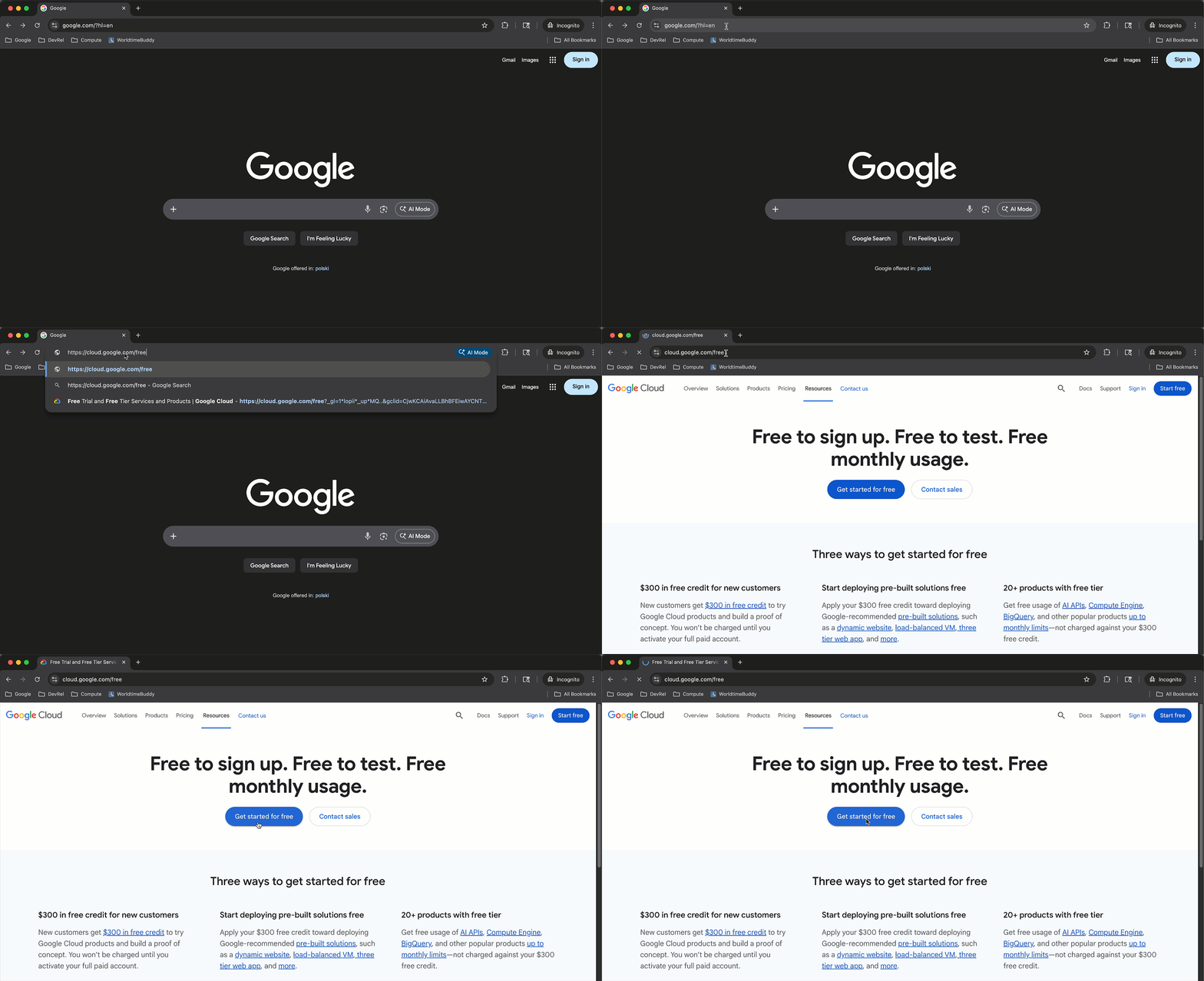
Navigate to cloud.google.com/free. You should see a button that says “Start Free” or “Get Started for Free”.
Note: If you don’t see the ‘Get starter for Free’ button you most likely have activated the Cloud account in the past, but should still be able to leverage the Free Tier.
Step 2 – Sign in
Sign in using your Google Account (gmail). This can be the same account you used for Google AI Studio.
Note: If you see a message saying “You may already have a Google Account yourname@gmail.com. Cancel to create a new account using an email address from a different provider.”, please click ‘Sign in’ to continue.
Step 3 – Accept Terms of Service
Select your country. This determines the currency and specific terms of service. You’ll need to agree to the Terms of Service to proceed.
Note: You may also choose to receive periodic emails and special offers, but it’s completely up to you.

Step 4 – Identity verification
This is the part where some new users hesitate, so let’s be clear: Google asks for a credit card or payment method to verify your identity and prevent potential fraud.
No Auto-Charge: You are not automatically charged when your free trial ends. You have to manually upgrade to a paid account to continue using resources beyond the free trial.
The card might be used to verify your bank account before being awarded the Free Credits and the exact method may differ from region to region.
To continue you need to provide contact information and a payment method.
Step 5: Start Building
Once verified, your console will load, and you’ll see your $300 Free trial credit balance in the top banner and in the “Billing Accounts” section. You typically start with a default project (e.g., “My First Project”) and you can create a new one.
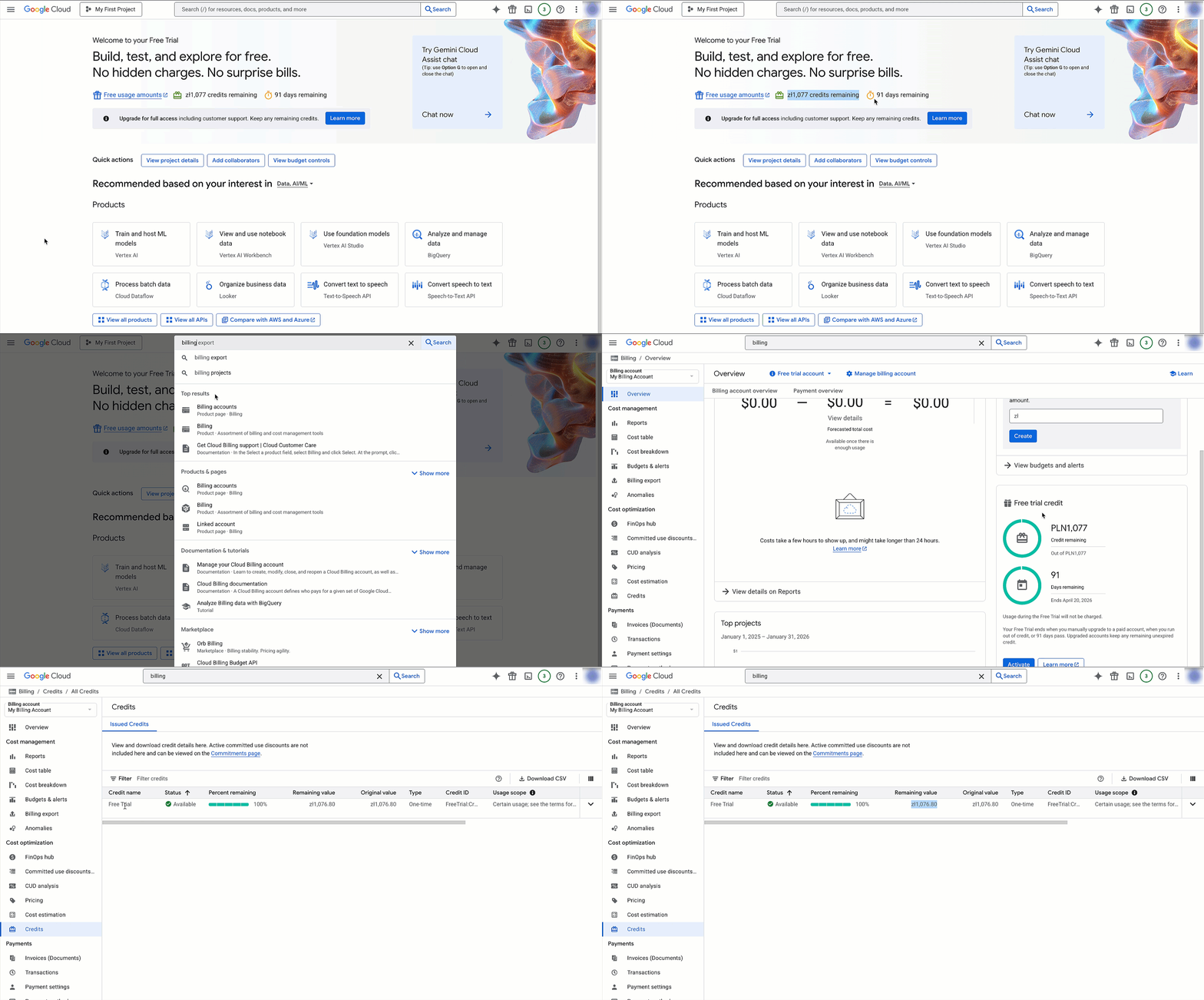
Note: The amount of credit remaining may be displayed in your local currency.
Connecting back to AI Studio
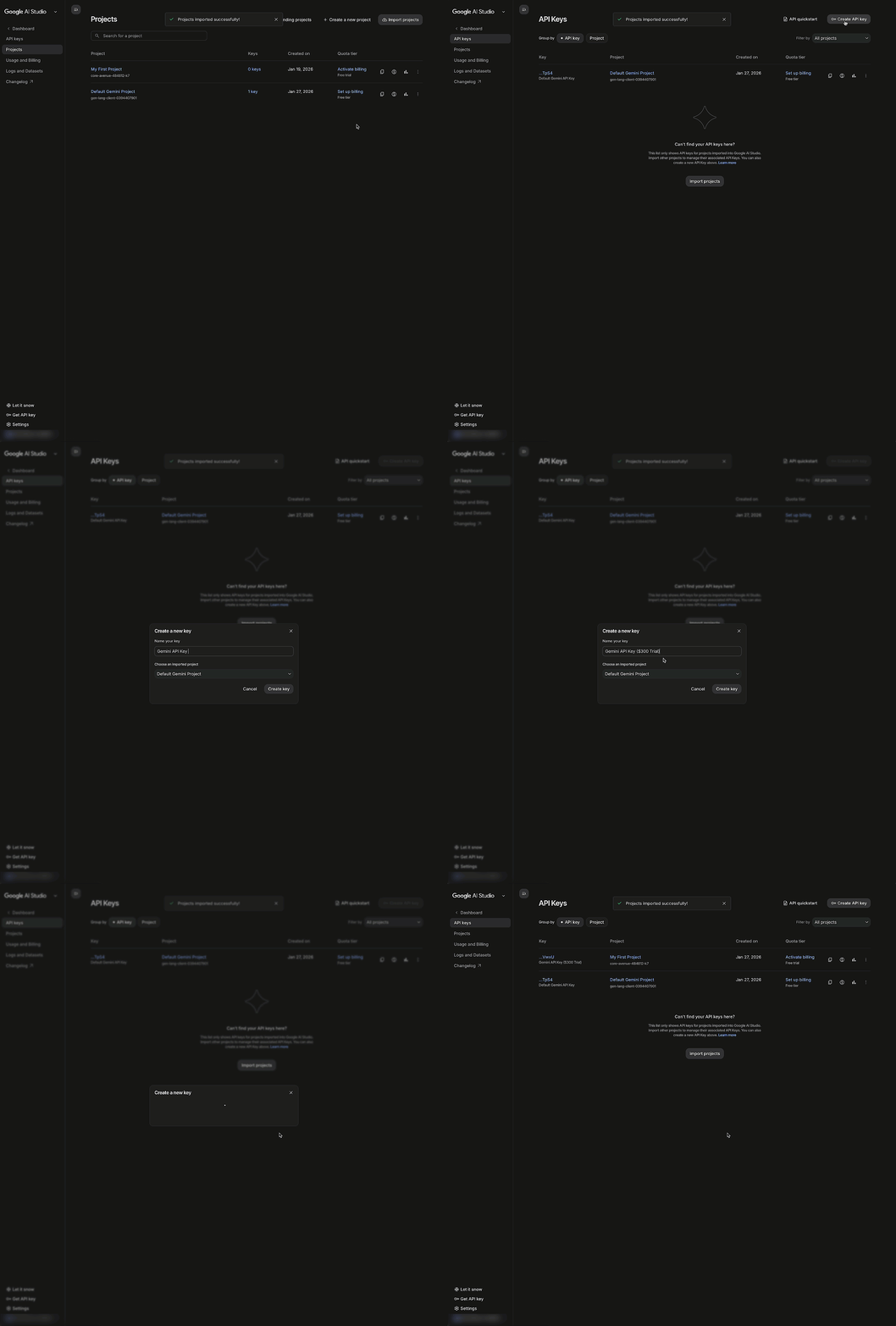
Now that you have a billing-enabled project, you can go back to Google AI Studio and use it with Nano Banana Pro when asked for a Paid API Key.
Import the new Project to Google AI Studio

Create a new API Key Connected with the Newly Imported Project
Call Nano Banana Pro with the New API Key

What’s Next?
You have $300 in credits and a powerful cloud platform at your fingertips. But what should you actually build? In the next post, we’ll show you a couple examples of utilising them to build next generation AI applications and Agents.
In the meantime I encourage you to explore our extensive codelabs library and start building your next idea!