
Hello Windows Insiders,
Today, we’re releasing new Windows 11 Insider Preview builds to the Beta and Experimental channels.
New builds this week
Select your channel below to view its release notes:
- Beta: Build 26320.10003
- Experimental: Build 26340.10013
Please note that we are temporarily blocking movement from Experimental or Beta to Experimental (Future Platforms), we are working to resolve this as soon as possible.
Ignite 2027
We look forward to welcoming Ignite attendees to San Francisco this week (November 17-19). We will be running a Windows Insider booth where you can meet some of the faces behind the program, provide your feedback and have your chance to win some swag! If you are not attending Ignite this week, digital registration is free and you can sign up here.
Notable new features:
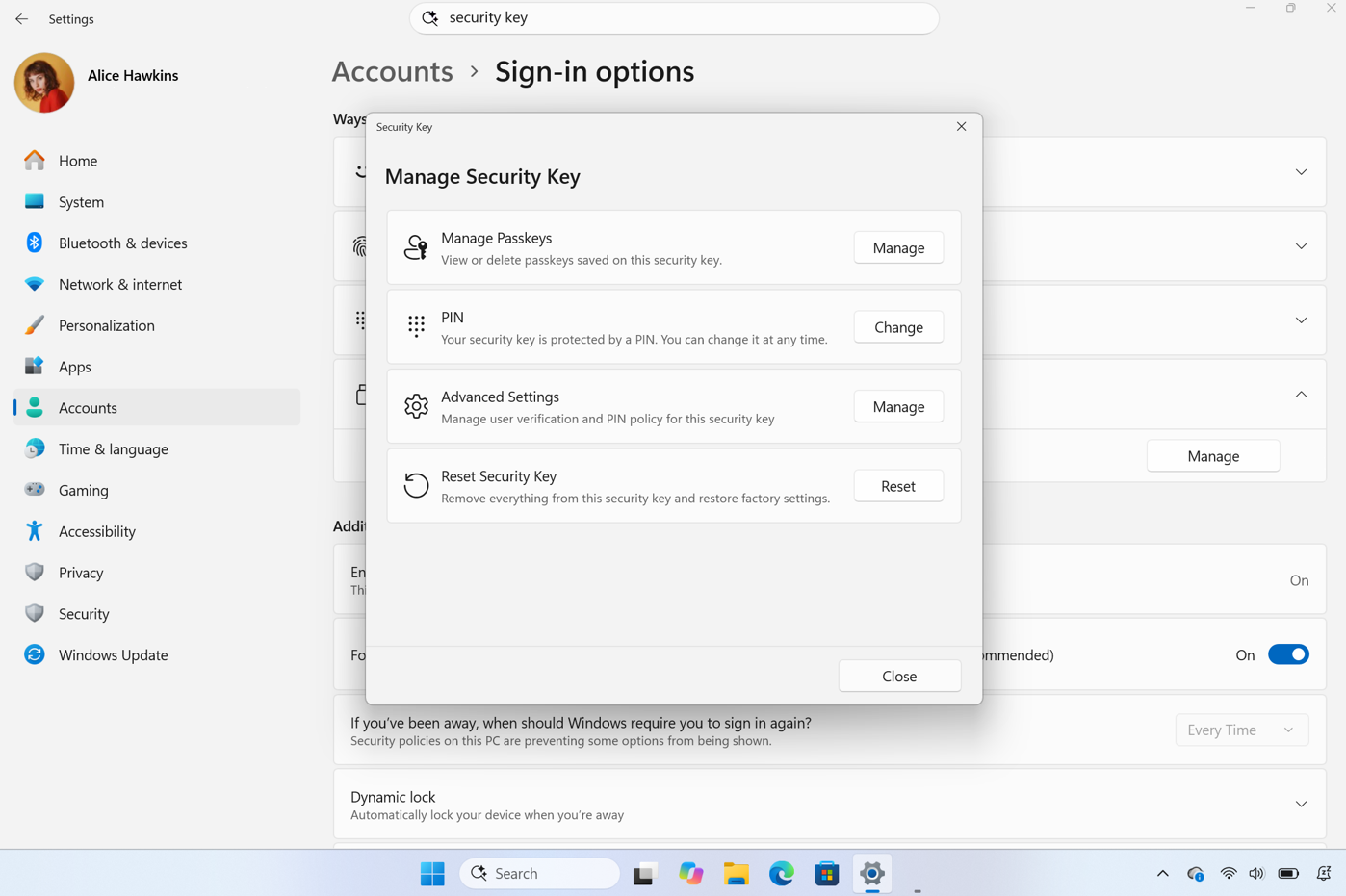
[Advanced security key management]
Release channel: Experimental
- You can now see the passkeys stored on a FIDO2 (Fast Identity Online 2) security key and remove them one at a time, instead of resetting the entire key. Admins can also configure enterprise settings such as minimum PIN length, always-required user verification, and enterprise attestation.
[Remote Lock]
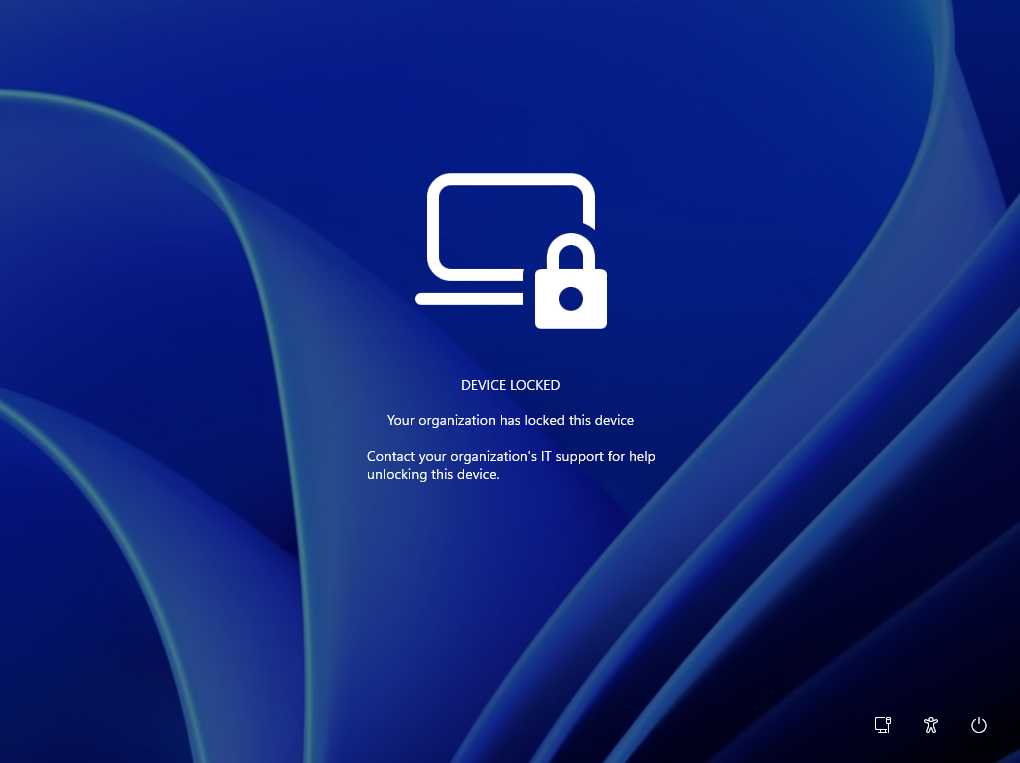
- Remote Lock lets IT lock a lost, stolen or compromised Windows device from Microsoft Intune without wiping it. Windows signs out every active session, hides all sign-in options and shows a Device Locked screen. Nothing is erased: the device stays enrolled and managed; BitLocker stays on, and user data stays in place. Only an admin can lift it remotely, so the user picks up where they left off. Learn more: https://aka.ms/remotelock
[Taskbar]
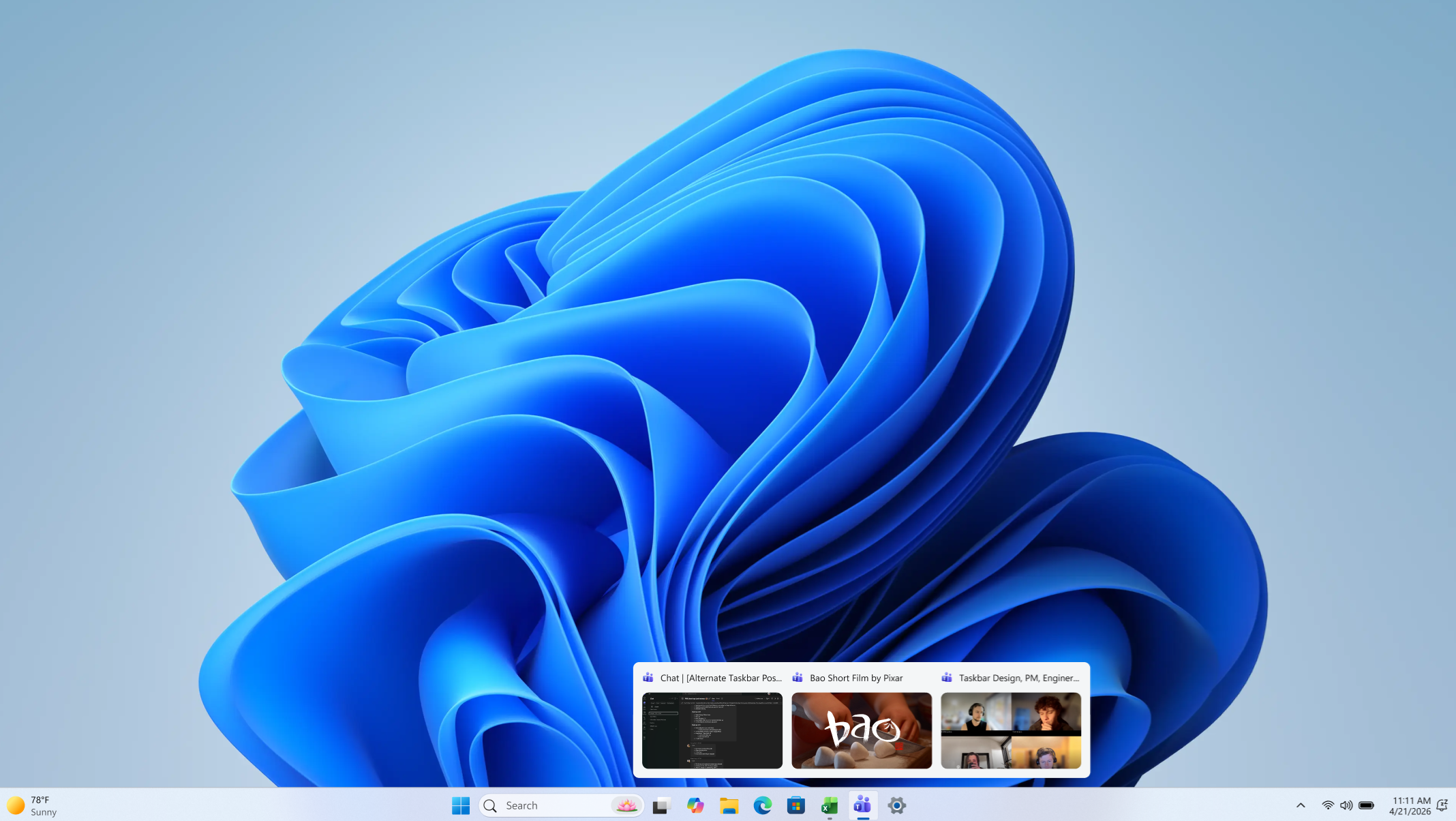
- When you hover over an app on the taskbar, Windows shows previews of its open windows to help you tell them apart and quickly see what’s in each one.
- Now, you can choose to use the list view anytime. When list view is on, hovering over an app on the taskbar shows all its open windows by title in a list instead of as previews.
- To turn on list view, go to Settings > Personalization > Taskbar.
[Magnifier]
Magnifier, the way you work: now with touch and touchpad
- Magnifier already works with your keyboard, mouse, and scroll wheel. Now it also supports touchpad and touch gestures, so you can zoom and move around in whatever way feels most natural to you.
- Before you start: Make sure Magnifier is running. Press Windows key + Plus (+) to turn it on. The gestures below work while Magnifier is on.
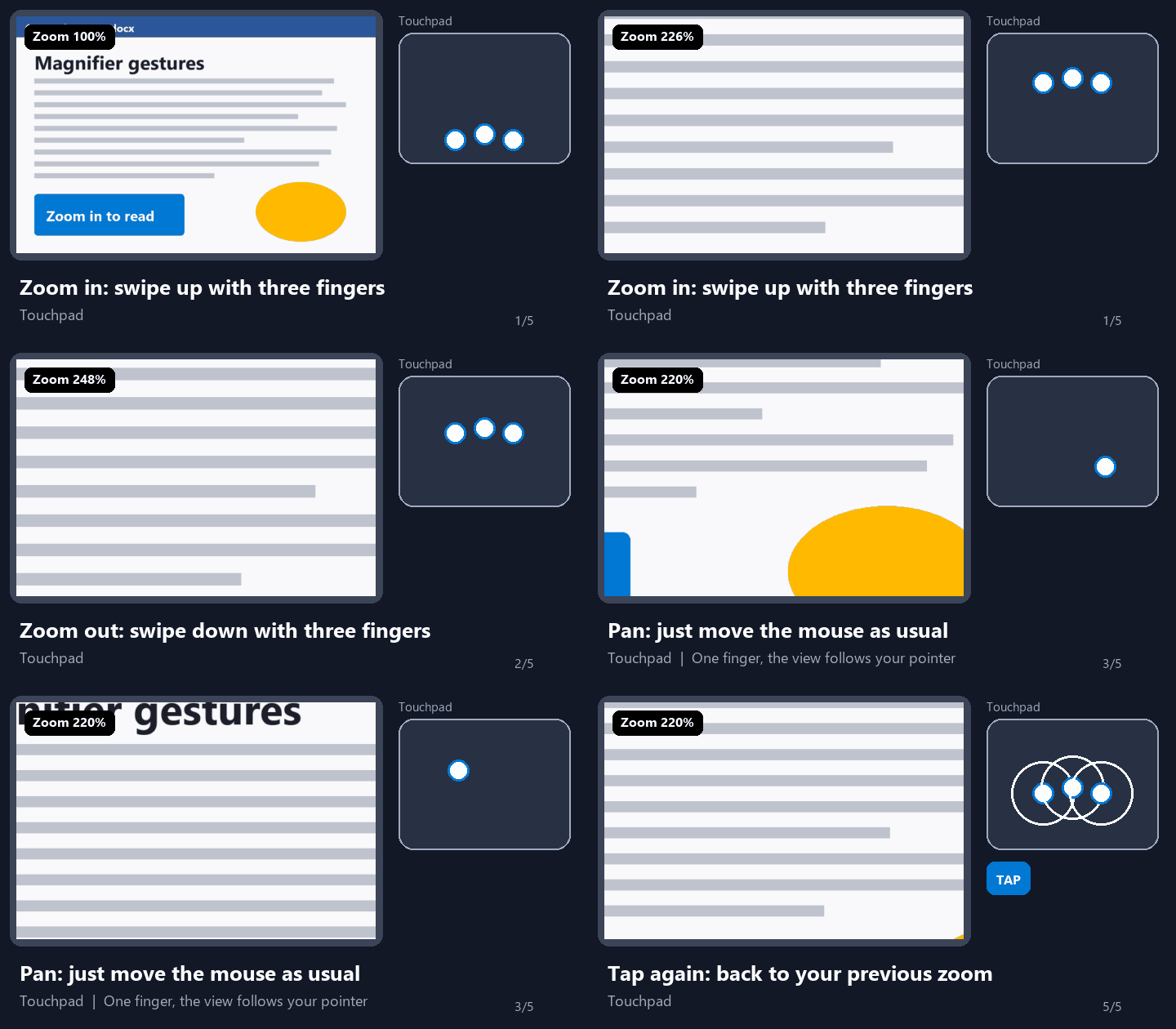
On a touchpad
- Zoom in or out: Swipe up with three fingers to zoom in or swipe down to zoom out.
- Pan around the screen: Move one finger as you normally would, and the magnified view follows your pointer.
- Toggle between 100% and your previous zoom level: Tap with three fingers.
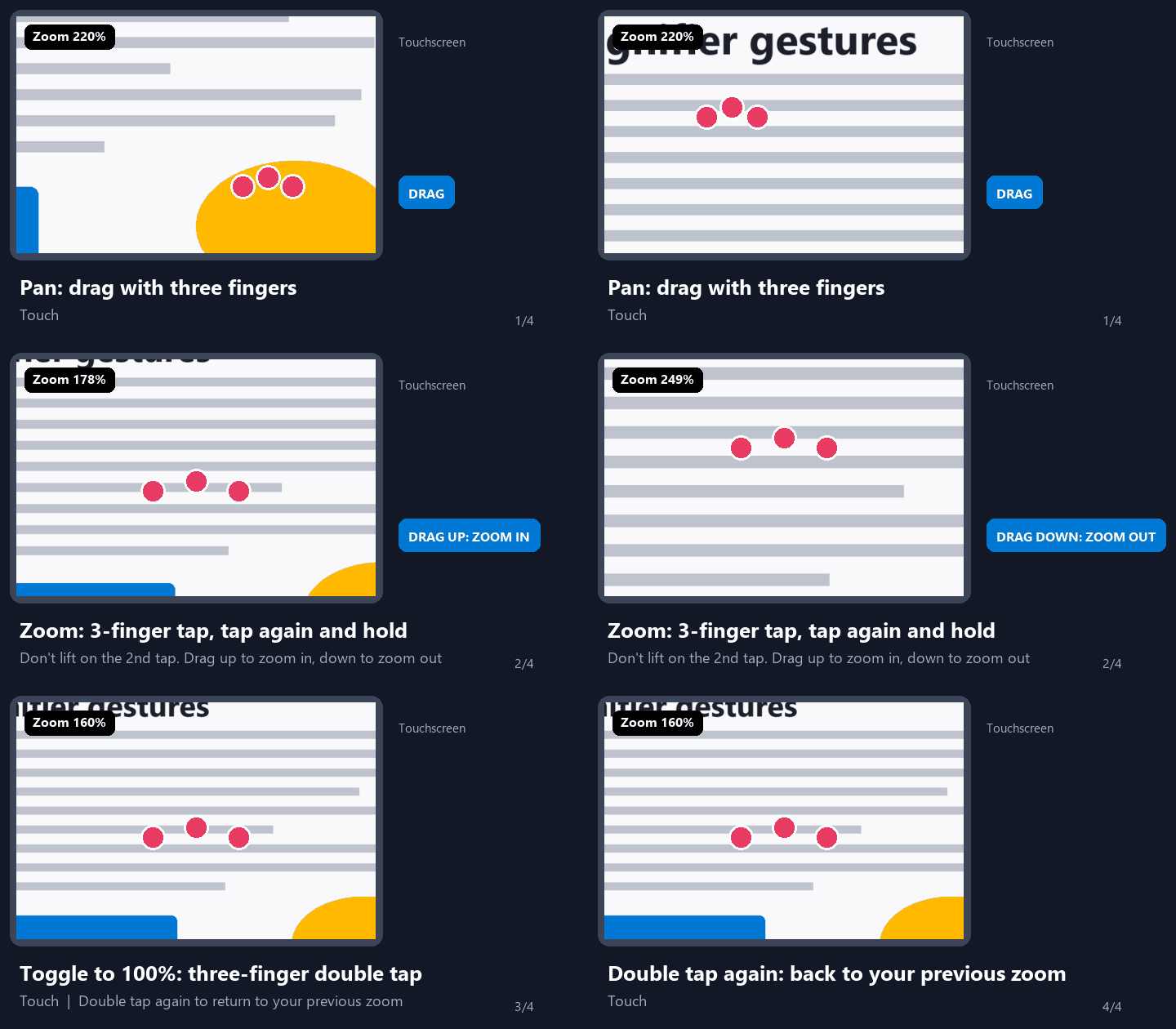
On a touchscreen
- Pan around the screen: Drag with three fingers.
- Zoom in or out: With three fingers, tap once, then tap again and keep your fingers down. Without lifting your fingers, drag up to zoom in or down to zoom out.
- Toggle between 100% and your previous zoom level: Double-tap with three fingers.
- Both gesture sets are on by default. To turn either one off, go to Settings > Accessibility > Magnifier and turn off Control Magnifier with touchpad gestures or Control Magnifier with touch gestures.
See release notes for more features.
Thanks,
Stephen and The Windows Insider Program team